User Sign-In
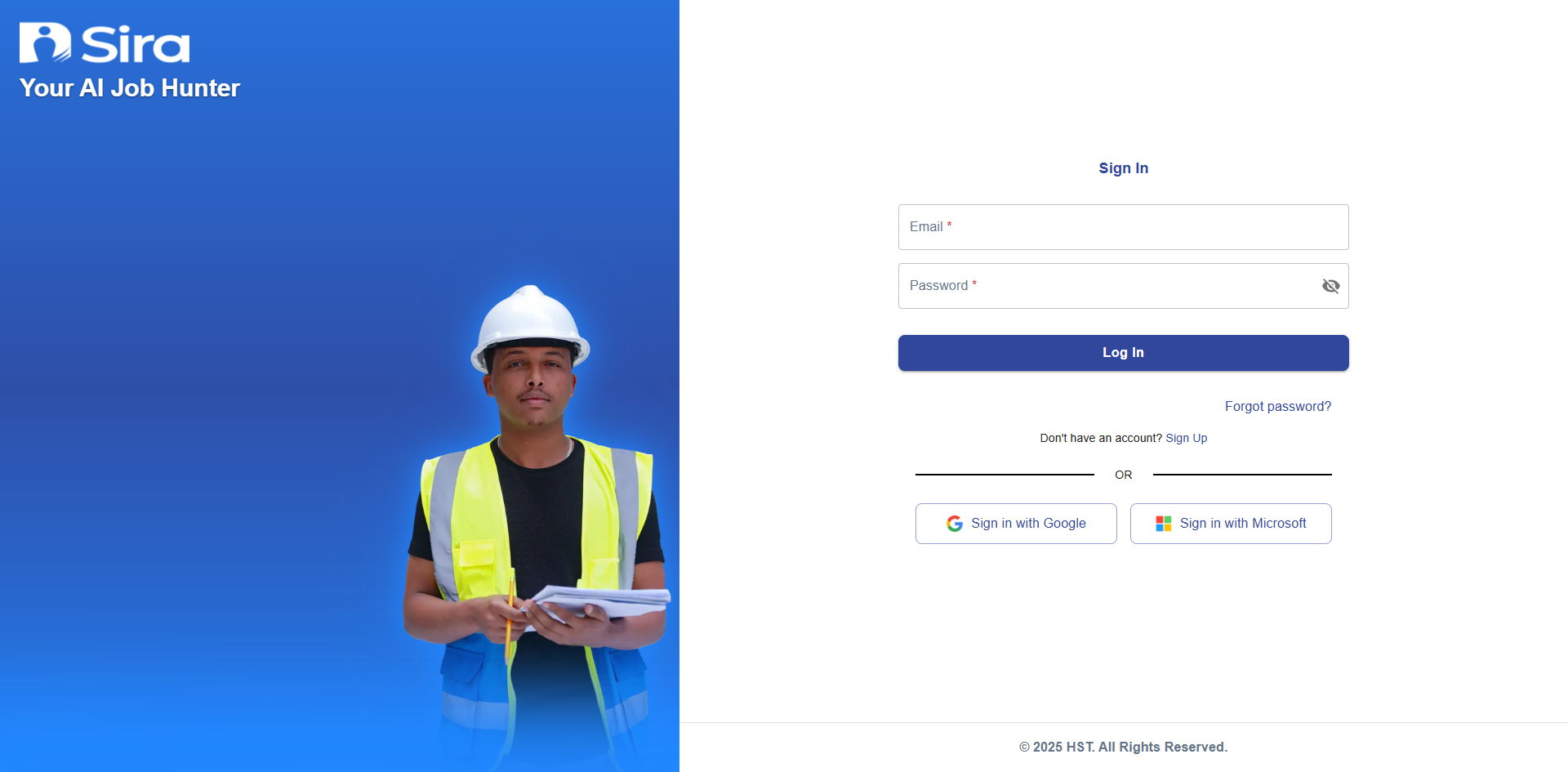
Welcome! This document explains how to Login to the HST Sira platform (recruiter). It covers prerequisites, step-by-step sign-in, account activation, common errors & fixes, security tips, and how to get help.
1. Overview
This guide helps users securely access the HST Sira system to search/post jobs, manage applications, and discover talent. It applies to:
- Recruiters (post jobs, manage applicants, search for and recommend talent)
2. Prerequisites
Before logging in:
- You must have a registered account (email + password) or an account created for you by an admin.
- A modern web browser (Chrome, Firefox, Edge, Safari) updated to the latest stable version.
- Internet connection.
- If your organization requires it: access to your email (for activation/reset) and, if enabled, a second factor (mobile authenticator app or SMS).
3. Quick Login Steps (standard email/password)
- Open your browser and go to the platform URL:
https://sira.hst-et.com/. - Click Login in the top-right corner of the public page.
- Enter your Email in the first field.
- Enter your Password in the second field..
- Click Login.
Expected result: You are redirected to your dashboard (recruiter view) and see your name in the top navigation.
4. Forgot Password / Reset Password
- On the sign-in page click Forgot password?.
- Enter your registered email, then click Send reset link.
- Open the reset email and click the link (valid for the time stated in email).
- Enter and confirm a new password confirming to the password policy.
- Click Save and then Login with your new password.
Tip: If you don’t receive the email, check spam and ensure you entered the correct email address. If problems persist, contact Support.
5. Accessibility & Keyboard Shortcuts
- Form fields are keyboard accessible: Tab to move between inputs, Enter to submit.
- Screen-reader friendly labels are used for form fields; if you encounter accessibility issues, report them to Support with details and assistive tech used.
6. Troubleshooting
Common Error Messages & Fixes
-
“Invalid email or password”
- Re-check email/username and password for typos.
- Ensure Caps Lock is off.
- If you forgot the password, use Forgot password? to reset it.
-
“Account not activated” / “Please verify your email”
- Open the activation email and click the link.
- If the link expired, request a new activation email.
-
“Too many failed attempts / Account locked”
- Wait the cooldown period (message usually states duration) or contact Support to unlock.
-
“2FA code invalid or expired”
- Enter the most recent code from your authenticator app.
- Sync your device clock or request a backup code.
-
“SSO login failed”
- Confirm you used the correct SSO provider and credentials.
- Contact your IT SSO admin if the issue persists.
-
“Network error / Unable to reach server”
- Check your internet connection.
- Try again in a few minutes. If the problem continues, notify Support with the error text and timestamp.
Troubleshooting Checklist (Quick)
- Confirm registered email.
- Reset password via Forgot password?.
- Check spam folder for activation/reset emails.
- Try a different browser or private/incognito mode.
7. Security Best Practices
- Use a unique, strong password (12+ characters; mix of letters, numbers, symbols).
- Never share passwords or recovery codes.
- Use different passwords for different services.
- Log out from public or shared devices (use Sign Out).
- If you suspect your account is compromised, change your password immediately and contact Support.
8. Signing Out
- Click your avatar or name in the top navigation.
- Select Sign Out or Log Out.
- Confirm if prompted.
Note: Clearing browser cookies or using private mode removes persistent sessions.
9. Frequently Asked Questions (FAQ)
Q: How long is the activation/reset link valid?
A: Typically 24 hours (or as stated in the email). Request a new link if expired.
Q: I registered but can’t find my account — what do I do?
A: Verify the registration email used, check spam, and contact Support with your full name and email.
Q: Can I Login from multiple devices?
A: Yes. Use Sign Out on public devices for security.
10. Need Assistance?
- Contact customer support
- Refer to FAQs section for common questions
- Contact system admin for technical issues