Go To Requests
The Requests Management system allows you to manage vetting requests through a structured workflow with multiple stages.
- Navigate to Vetting Management -> click list icon on the card.
 In this section, you can input the stage name and create a new stage for the applicant.
Three Main Stages:
1. Submission Stage
- Initial stage where requests are first submitted
- Requests await review and processing
- Basic applicant information is collected
2. Payment Stage
- Intermediate stage for payment processing
- Requests move here after initial submission review
- Payment collection and verification occurs
3. Vetted Stage
- Final stage for completed requests
- Requests that have passed all vetting processes
Creating Stages
- Navigate to Go To Requests -> On the Stage section -> + AddNew Stage.
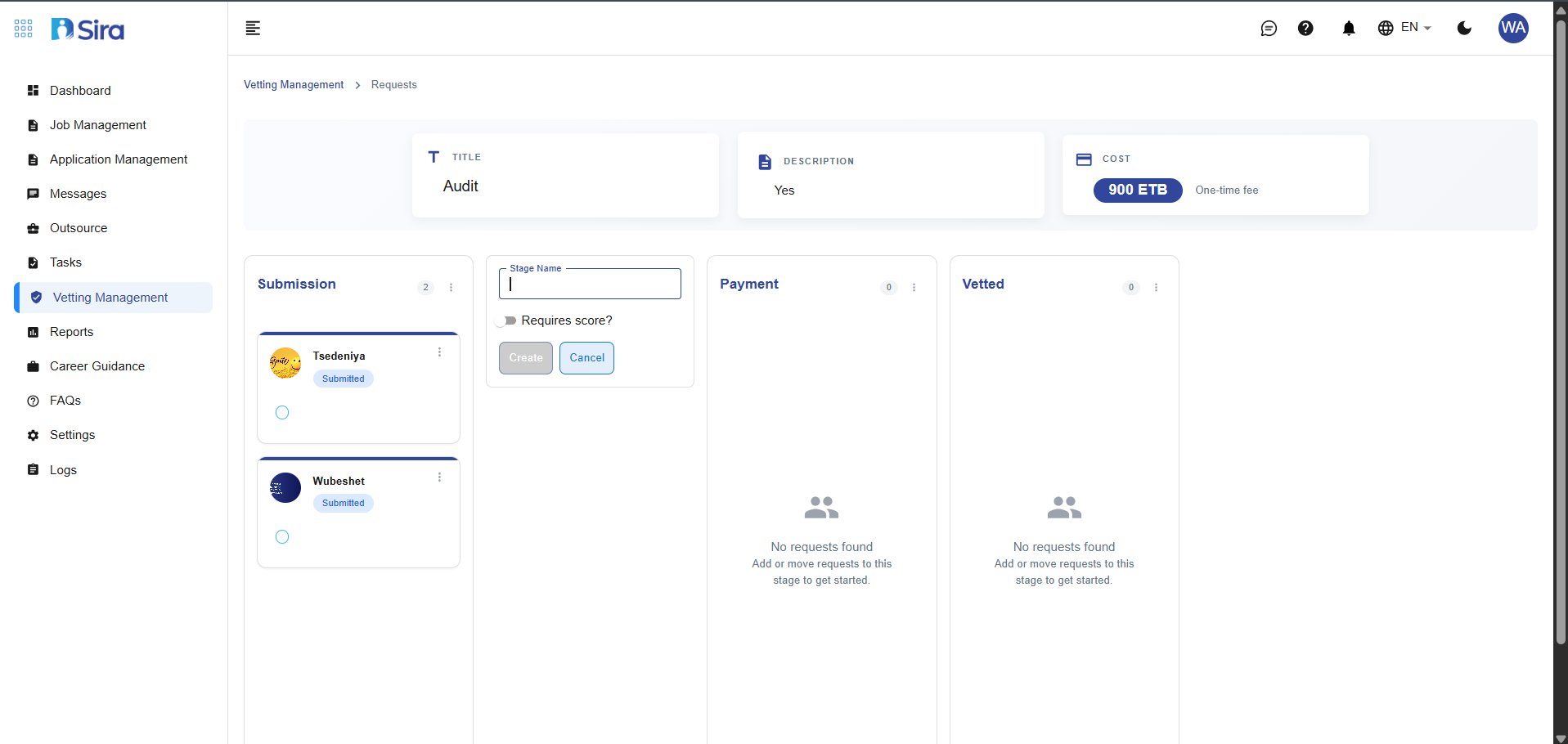 In this section, you can input the stage name and create a new stage for the Vetting.
Adding New Stages
- Click "Add New Stage" button
- Configure stage settings:
- Stage Name - Descriptive title
- Require Score? - Toggle to switch ON/OFF
Managing Requests by Stage
- Navigate to Go To Requests -> On Individual Stage three-dot menu (⋮).
 In this section, you can manage applicants in bulk
Available Actions:
- Search - Find specific requests
- Decline All - Reject all requests in this stage
- Move All Applicants - Bulk move requests to next stage
- Order Payment for All - Initiate payment process for all
- Send Invitation to All - Send bulk invitations to applicants
- View Invitations - See sent invitations
Applicant Movement to stage
- Navigate to Go To Requests -> On Individual Stage three-dot menu (⋮) -> Move All Applicants.
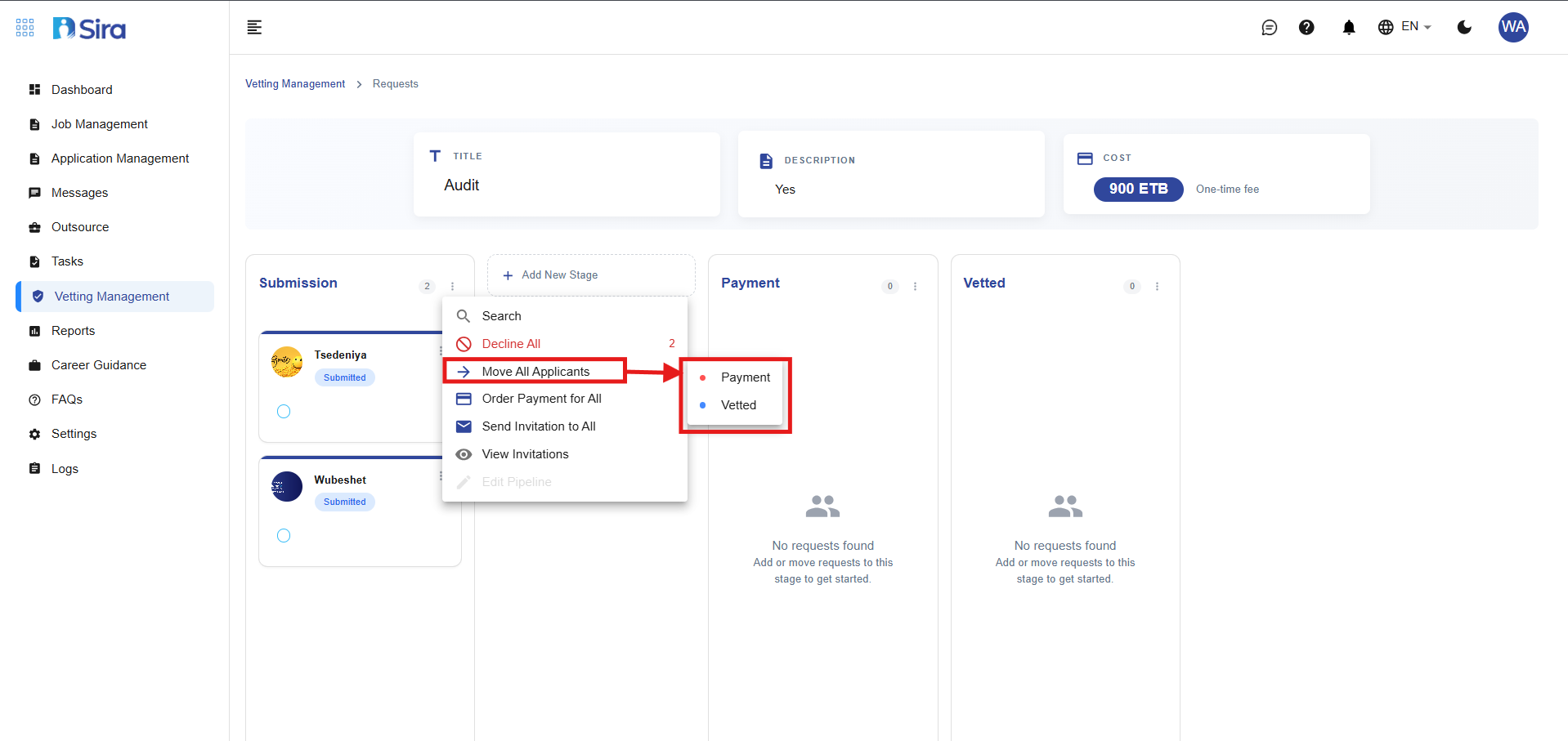 In this section, you can move applicants to the next stages
Order Payment
- Navigate to Go To Requests -> On Individual Stage three-dot menu (⋮) -> Order Payment to All.
 In this section, you can create payment for all
Sending an Invitation
- Navigate to Go To Requests -> On Individual Stage three-dot menu (⋮) -> Send Invitation to All.
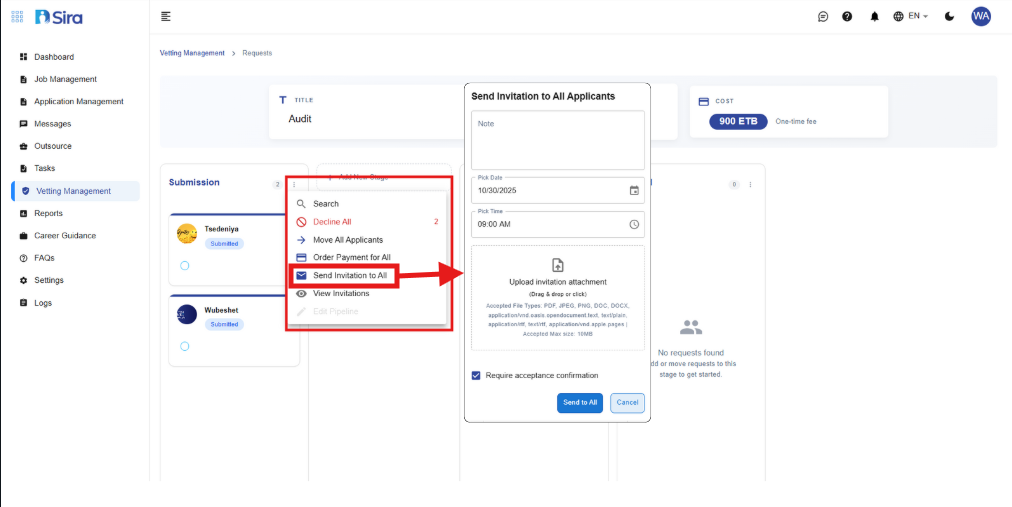 In this section, you can send an invitation to the applicant, along with an option to upload an attachment.
Types of Invitations
- Normal Invitation
- Sent without acceptance and without attachments.
- The acceptance checkbox remains inactive (unchecked).
- Invitation with Acceptance
- Sent with an acceptance option for the applicant to confirm.
- The acceptance checkbox is activated (checked).
- Invitation with Attachment Only
- Sent with necessary documents attached from the local device.
- The acceptance checkbox is disabled (unchecked).
- Invitation with Attachment and Acceptance
- Sent with both attachments (if required) and acceptance enabled.
- Attach the necessary documents from the local device and activate the acceptance checkbox.
View Invitations
- Navigate to Go To Requests -> On Individual Stage three-dot menu (⋮) -> View invitations.
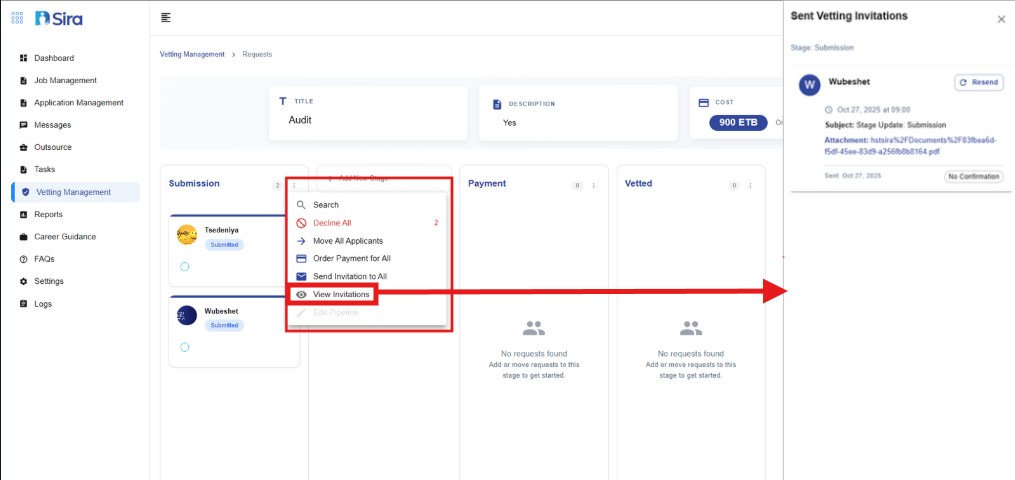 In this section, you can view sent invitation and resend.
Managing Requests Individually
- Navigate to Go To Requests -> On Individual Applicant three-dot menu (⋮).
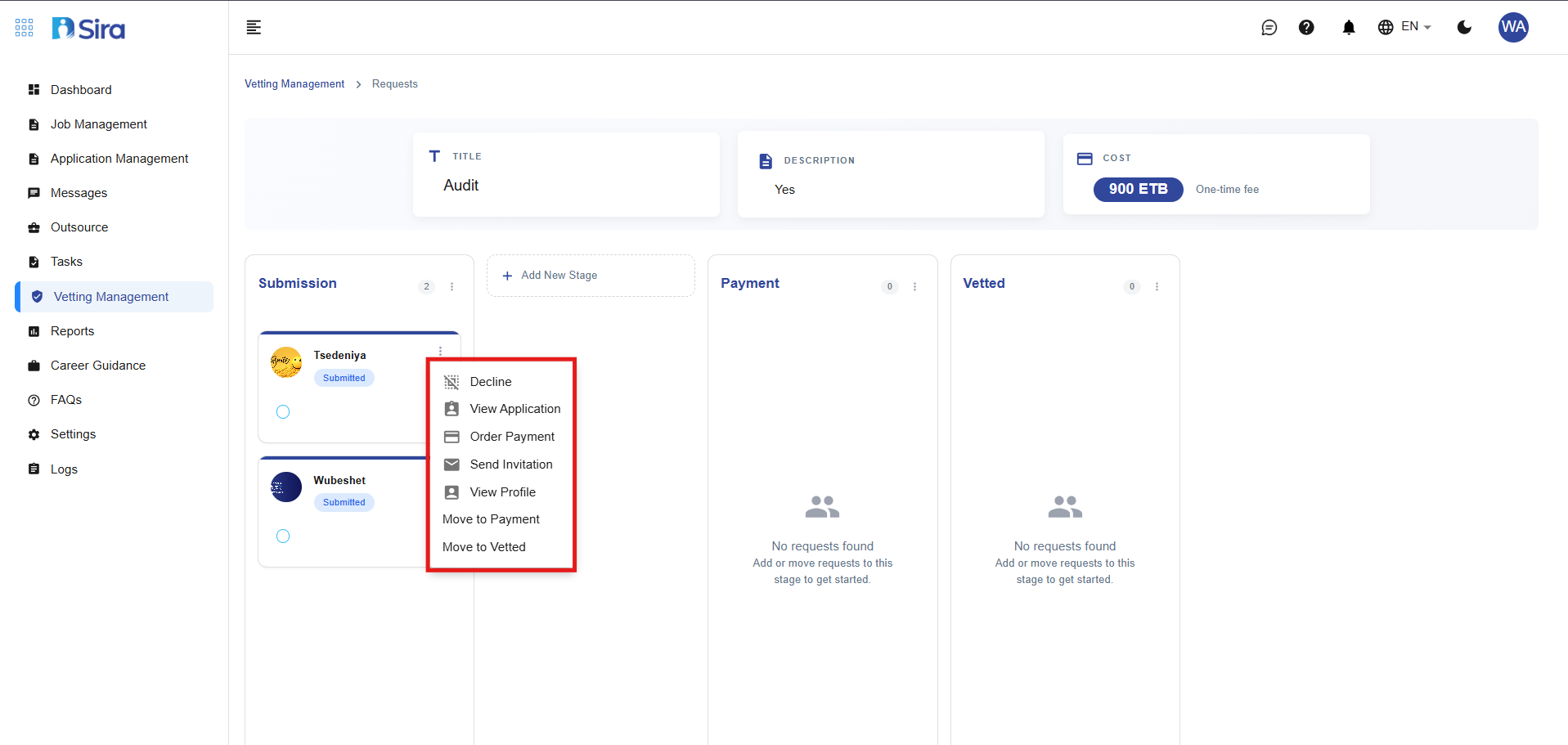 In this section, you can manage applicants individually
Individual Request Actions:
- Decline - Reject a single request
- View Application - See full application details
- Order Payment - Initiate payment for one request
- Send Invitation - Send invitation to applicant
- View Profile - Access applicant profile
- Move to Payment - Advance to payment stage
- Move to Vetted - Skip directly to final stage
Request Details View
- Navigate to Go To Requests -> On Individual Applicant three-dot menu (⋮) -> View Application.
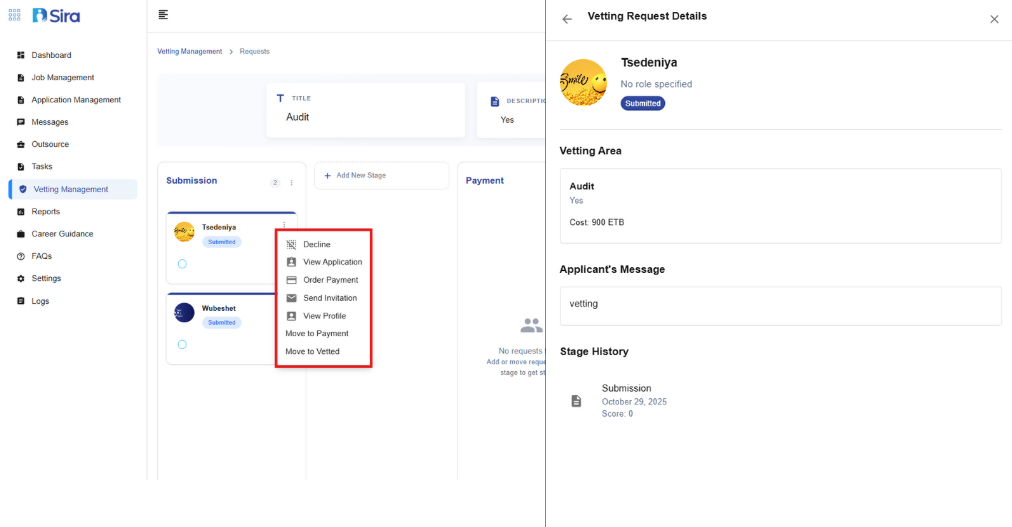 In this section, shows the applicant's details
Comprehensive Request Information:
Applicant Information:
- Name - Applicant's full name
- Role - Specified or "No role specified"
- Message - Applicant's additional notes
Vetting Area Details:
- Title - Vetting process name (e.g., "Audit")
- Description - Process details (e.g., "Yes")
- Cost - Associated fees (e.g., "$90 ETB")
Stage History:
- Submission Date - When request was submitted
- Current Score - Performance or rating score
- Stage Timeline - Movement between stages
Profile Details
- Navigate to Go To Requests -> On Individual Applicant three-dot menu (⋮) -> View Profile.
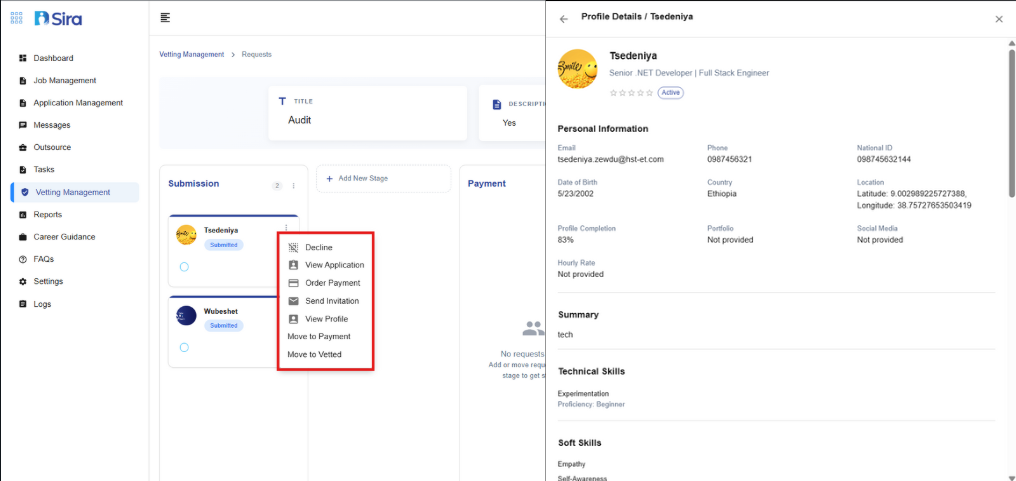 In this section, displays the applicant's personal information
Best Practices
Request Management:
- Regular Review - Check each stage frequently
- Timely Processing - Move requests through stages promptly
- Clear Communication - Use invitation system effectively
- Documentation - Maintain proper records and attachments
Stage Transitions:
- Verify all requirements are met before moving requests
- Ensure payments are processed before advancing to Vetted stage
- Maintain clear audit trail of stage movements
Invitation Management:
- Send invitations with clear date/time information
- Include all necessary attachments
- Require confirmations when needed
- Track invitation responses
Troubleshooting
Common Issues:
- "No requests found" - No requests in current stage; check previous stages
- Missing attachments - Ensure all required files are uploaded before sending invitations
- Payment issues - Verify payment processing before moving to next stage
- Stage transition errors - Check if all stage requirements are met
Empty Stage Message:
"If you see 'No requests found - Add or move requests to this stage to get started,' this means the stage is currently empty. Move requests from previous stages to populate."
Need Assistance?
- Contact customer support
- Refer to FAQs section for common questions
- Contact system admin for technical issues