Overview
Welcome to the Vetting Management Guide for recruiters on HST Sira!
This document explains manage vetting requests for different Positions.
- Navigate to Vetting Management.
 In this section, you can see vetting request card lists, create button, and actions(edit,view,delete & GoTo Request)
Viewing Vetting Area Details
- Navigate to Vetting Management -> click the Eye Icon on individual card.
 In this section, you can see the detail of the vetting request
Vetting Area Details Include:
- Title: Name of the vetting area (e.g., "Audit")
- Cost: Associated cost (e.g., "ETB800")
- Description: Detailed explanation of what the vetting involves
- Status: Active/Inactive status
Creating New Vetting Areas
- Navigate to Vetting Management -> click the create button.
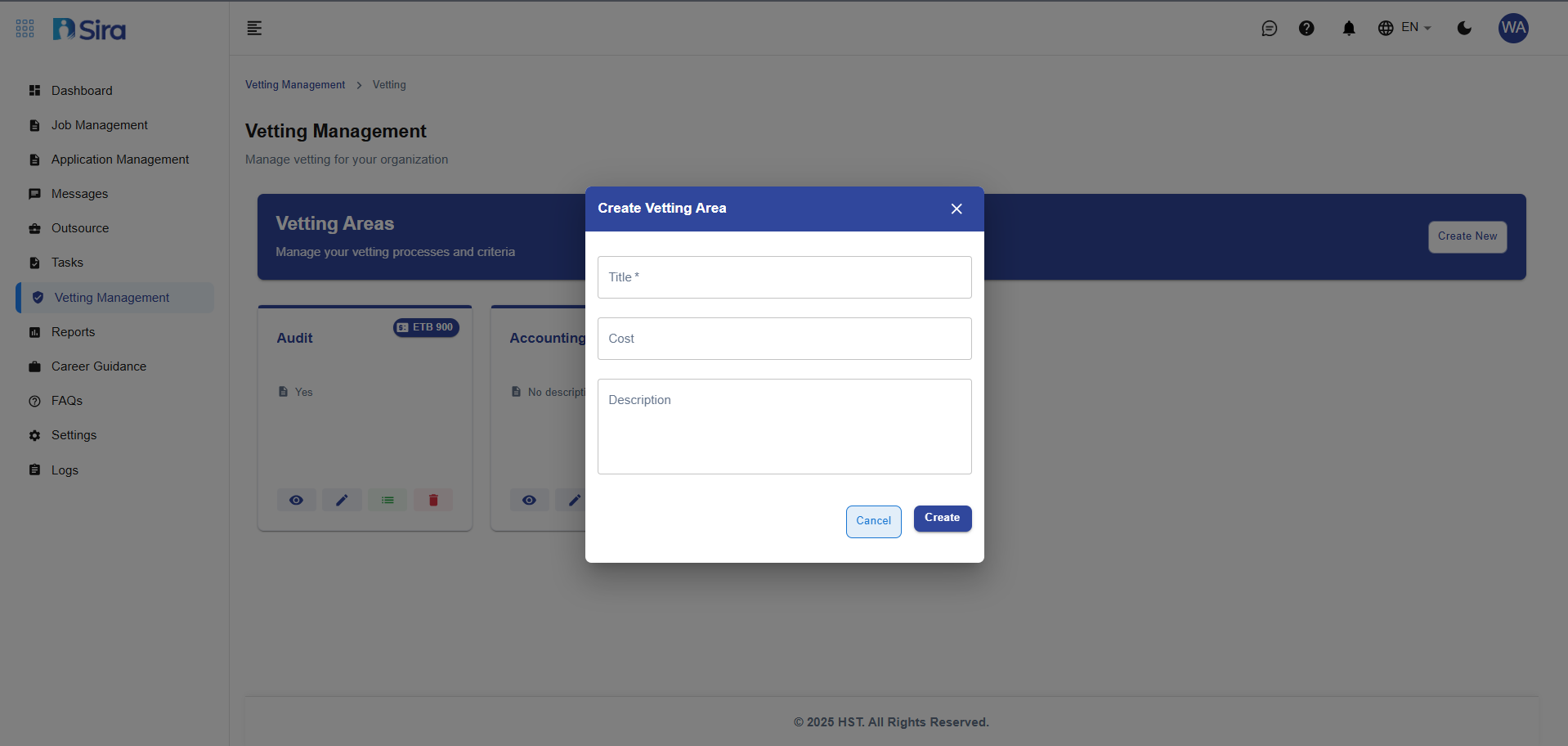 In this section, you can create a vetting request
Fill in Required Information
Title* (Required)
- Enter the name of the new vetting area
- Examples: "Background Check", "Education Verification", "Reference Check"
Cost
- Enter the cost associated with this vetting process
Description
- Provide a detailed description of what this vetting process involves
- Explain what will be checked or verified
- Specify any requirements or procedures
Complete Creation
- Cancel - Discard the new vetting area
- Create - Save and create the new vetting area
Editing Existing Vetting Areas
- Navigate to Vetting Management -> click the pencil icon on the card.
In this section, you can Edit individual vetting request
Editable Fields
Tier
- Set the level or tier of the vetting process
- Example: "Audit"
Cost
- Update the cost amount
- Example: "800" (currency may be predefined)
Description
- Modify the description text
- Example: "Yes" or more detailed explanations
Best Practices
Creating Effective Vetting Areas
- Use Clear Titles - Make vetting areas easily identifiable
- Set Realistic Costs - Accurately reflect actual vetting expenses
- Write Detailed Descriptions - Clearly explain what each vetting process involves
Management Tips
- Regularly review and update vetting area costs
- Ensure descriptions are current and accurate
- Use consistent naming conventions
Troubleshooting
Common Issues
Creation Problems:
- "Title already exists" - Use a unique name for each vetting area
- "Required field missing" - Ensure all mandatory fields (marked with *) are completed
- "Cost format invalid" - Enter numerical values only for cost fields
Editing Difficulties:
- "Cannot edit active vetting" - Some fields may be locked when vetting is in progress
- "Changes not saving" - Check internet connection and try refreshing the page
- "Permission denied" - Verify user role has editing privileges
Viewing Issues:
- "Card not displaying" - Refresh the page or check filters
- "Details not loading" - Clear browser cache and try again
- "Missing eye icon" - Check user permissions for view access
Deletion Problems:
- "Cannot delete in-use vetting" - Vetting areas linked to active requests cannot be deleted
- "Delete option missing" - User may not have admin-level permissions
- "Error during deletion" - Ensure no pending requests are associated
General System Issues:
- "Slow loading" - Check internet speed and try during off-peak hours
- "Button not responding" - Refresh the page or try different browser
- "Data not syncing" - Allow time for server synchronization
Status Management:
- "Cannot change status" - Verify all required actions are completed first
- "Wrong status display" - Clear browser cache and reload
- "Status update failed" - Check if multiple users are editing simultaneously
Need Assistance?
- Contact customer support
- Refer to FAQs section for common questions
- Contact system admin for technical issues