Job Creation With Template
Overview
This guide provides step-by-step instructions for creating and managing job postings in the Job Management .
Getting Started
- Navigate to Job Management -> Create Job Post.
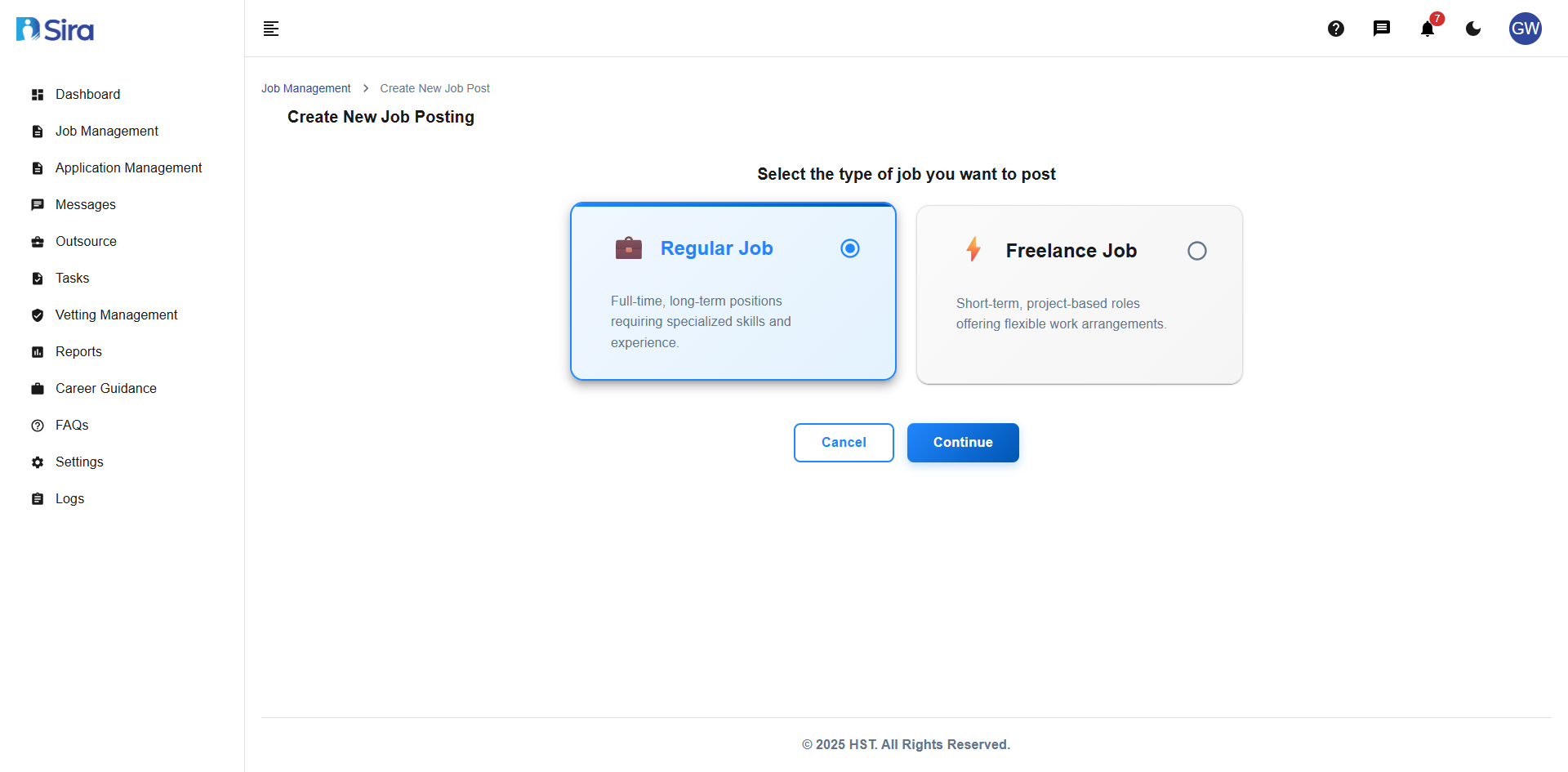 In this section, you can see an option for job type u want to post
When you begin creating a new job posting, first select the type of job:
Regular Job
- Full-time, long-term positions
- Requires specialized skills and experience
- Ideal for permanent roles
Freelance Job
- Short-term, project-based roles
- Flexible work arrangements
- Perfect for temporary or contract work
Actions:
- Cancel - Return to previous screen
- Continue - Proceed to next step
Creation Method
- Navigate to Job Management → after selecting job type then click continue.
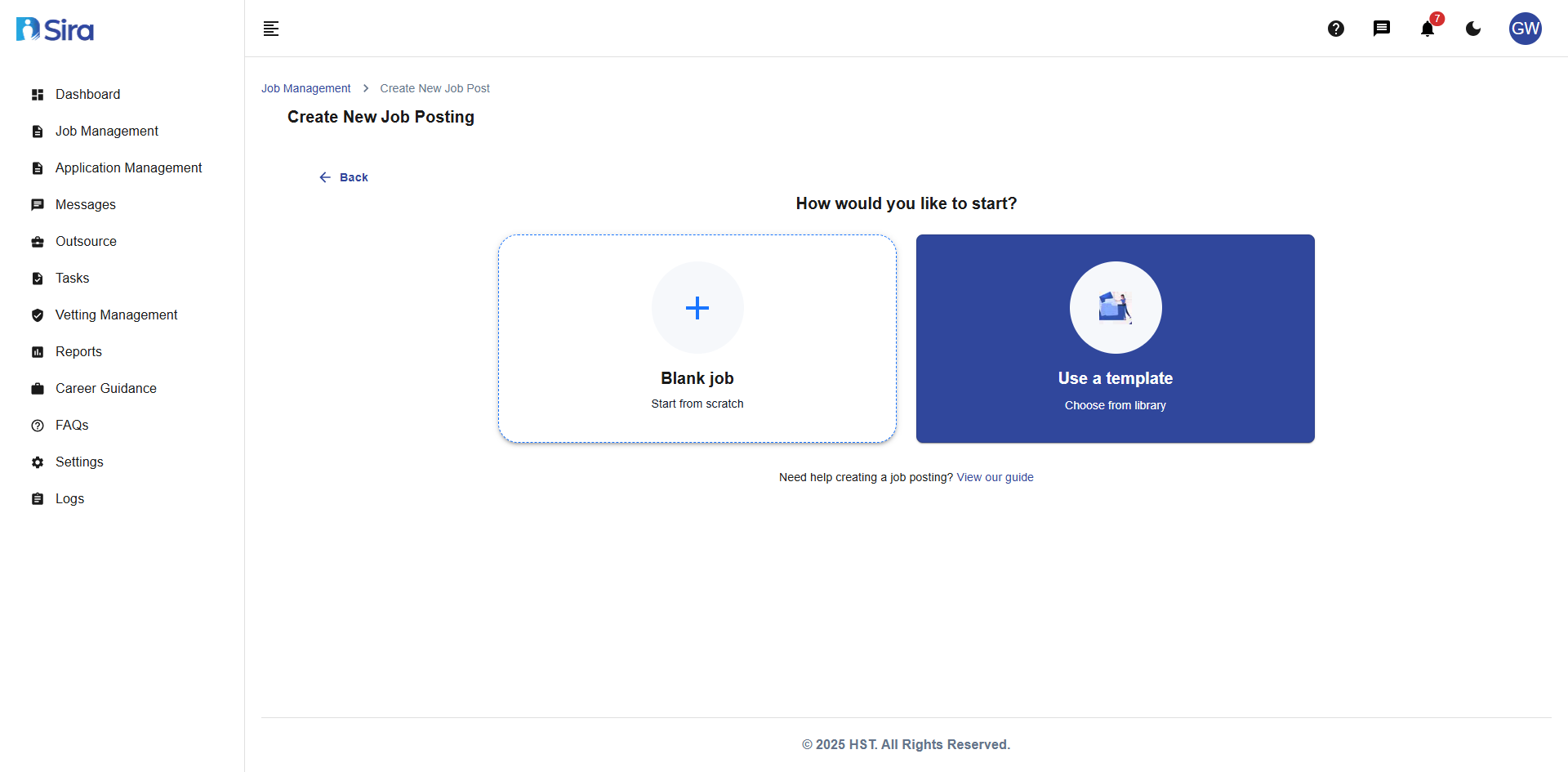 In this section, you can select either to post job using template or create from the scratch
Choose how you want to create your job posting:
Blank Job
- Start from scratch with empty fields
- Recommended for unique positions
Use a Template
- Choose from pre-designed templates
- Faster setup process
- Consistent formatting
Select Template
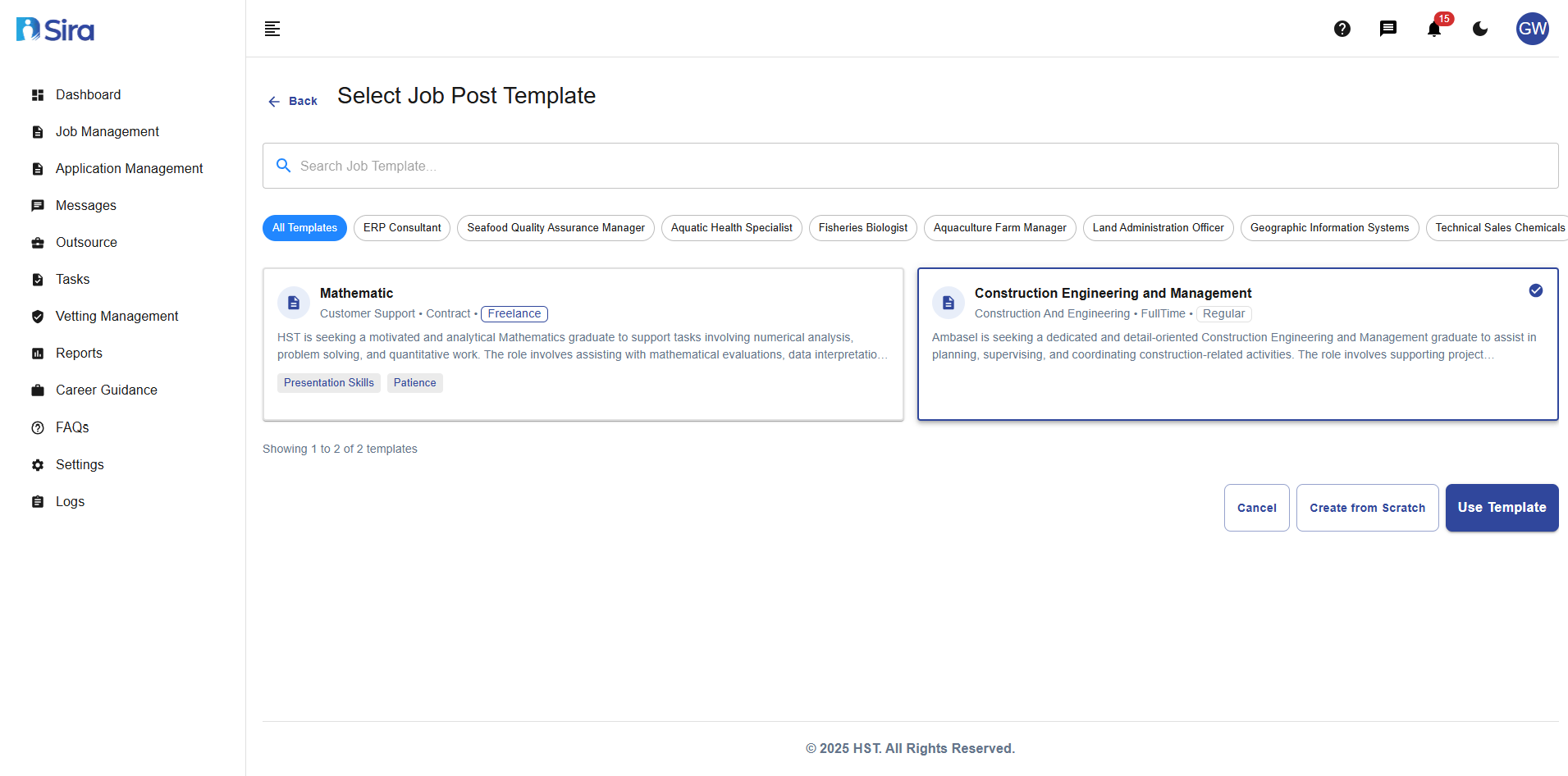 In this section, you can select a template for any field
Selection Options
Creation Methods
Use Template
- Select from pre-designed job templates
- Maintains consistent formatting and structure
- Includes pre-filled fields for common job types
- Saves time on repetitive data entry
- Click Use Template after selecting your preferred template
Create from Screen
- Start with a completely blank form
- Ideal for unique or non-standard positions
- Click Create from Screen to begin from scratch
Detail of selected template
 In this section, you can view the detail of the content on that selected template
Edit Template
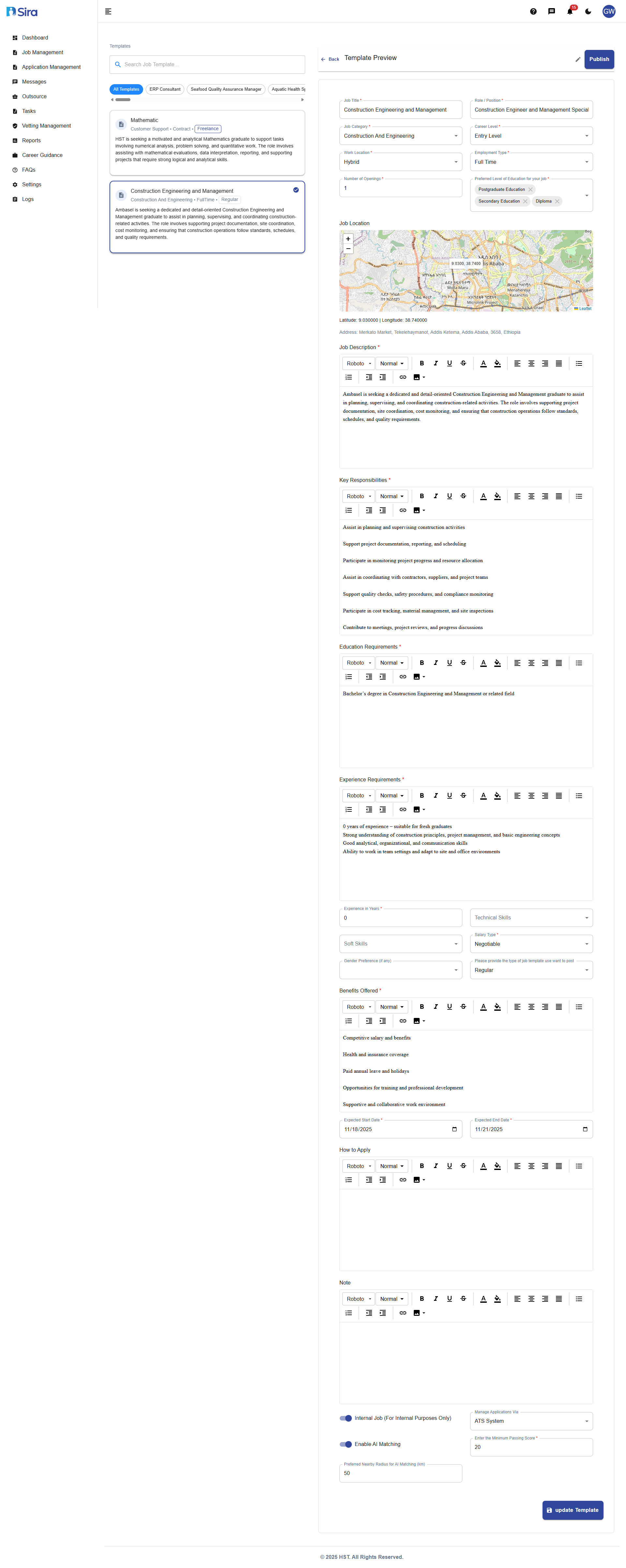 In this section, you can Edit the content on that selected template
✏️ Edit
- Modify job information for publishing or updating the template information
Update Template
- Save edited the template in general
Publish
- Publish the job posting to make it live
- Position becomes visible to candidates immediately
Best Practices
- Be Specific - Use clear, detailed descriptions
- Be Transparent - Provide accurate compensation information
- Be Realistic - Set achievable requirements and timelines
- Be Thorough - Complete all sections for best results
- Be Professional - Maintain consistent, professional tone
Troubleshooting
Common Issues
Problem:
- Red validation errors on required fields
- Cannot proceed to next step
- Form not saving information
Solutions:
- Ensure all * (required) fields are completed
- Check for special characters in text fields
- Verify date formats (mm/dd/yyyy)
- Try using different input methods
Problem: Template Issues
- "SAVE Job" button not working
- Progress lost when navigating away
Solutions:
- Complete all 6 steps in the Job creation process
- Ensure all required fields (*) are filled
- Check for internet connectivity issues
Solutions:
- Complete all required fields in current step
- Check for validation error messages
- Deep refresh your browser by pressing "Ctrl + Shift + R"
Problem: Job Won't Post or Update
- Error when clicking "Publish"
- Changes not saving when editing
- "Update Template" not working
Solutions:
- Verify all required fields are completed
- Check for special characters in job title
- Ensure deadline is in the future
- Try saving as draft first, then posting
Problem: Date Pickers Malfunctioning
- Cannot select dates from calendar
- Date format errors
- Start/End date validation issues
Solutions:
- Manually type dates in mm/dd/yyyy format
- Ensure end date is after start date
- Check system date format settings
Need Assistance?
- Contact customer support
- Refer to FAQs section for common questions
- Contact system admin for technical issues